The Nayax Management Suite (Core) gives you full control over your vending machines and product data. To help you manage your devices easily, we'll show you here how to set up product groups, products and product folders the right way.
 Tip: If you prefer visual instructions, there's a video tutorial.
 Set up product groups
Product groups combine items of the same type and VAT rate (e.g. drinks 19%).
Here's what to do:
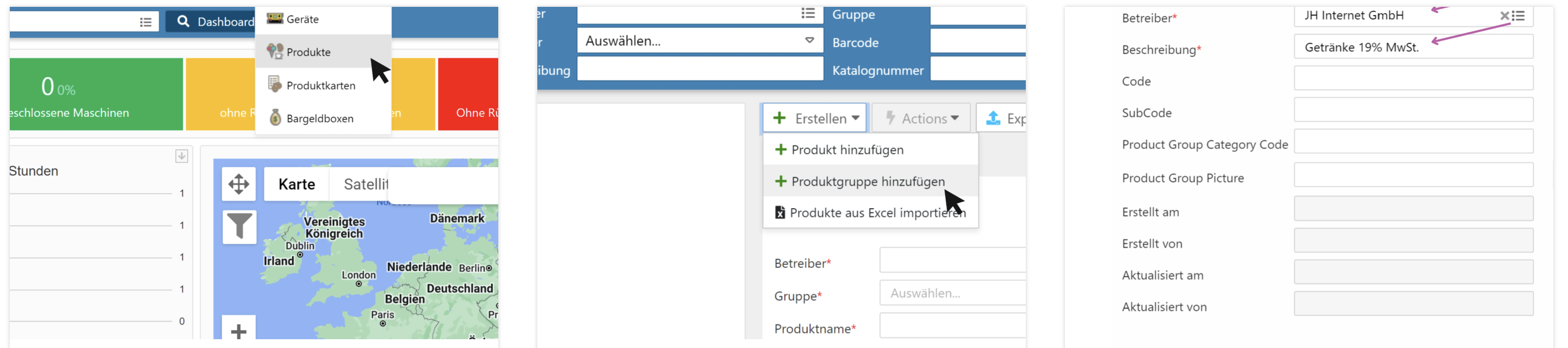
Go to Administration → Products.
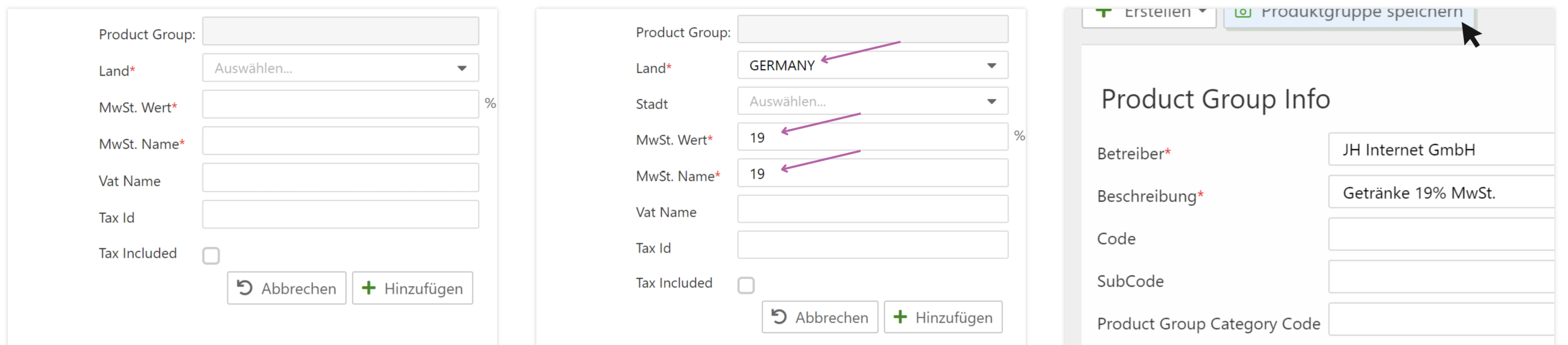
Click on Create → Add product group.
Select the operator.
Enter a description (e.g. “Drinks 19% VAT”).
Add the VAT rate as follows:
Select country
Enter VAT value and name
Confirm with Add
Finally, click Save.
 Create products
Products have to be assigned to a product group.
Here's what to do:
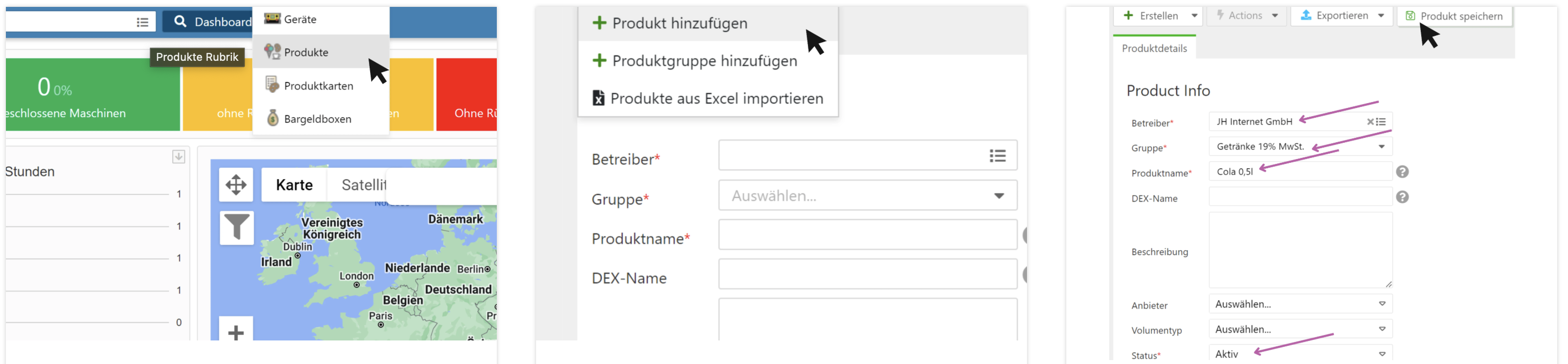
Go to Administration → Products.
Click on Create → Add product.
Fill in fields:
Select operator
Select product group
Give product name (e.g. "Cola 0.5 l")
Status: Active set
Finish with Save.
 Create product folder
The product folder connects your products with the vending machine compartments (spirals).
Here's how you do it:
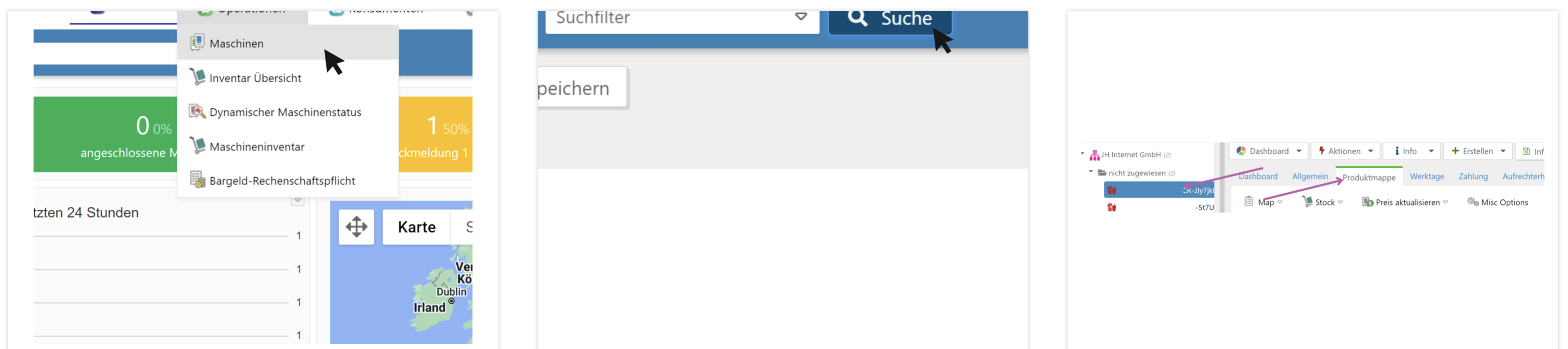
Go to Operations → Machines.
Find the machine you want and click on it.
Switch to the Product Map tab.
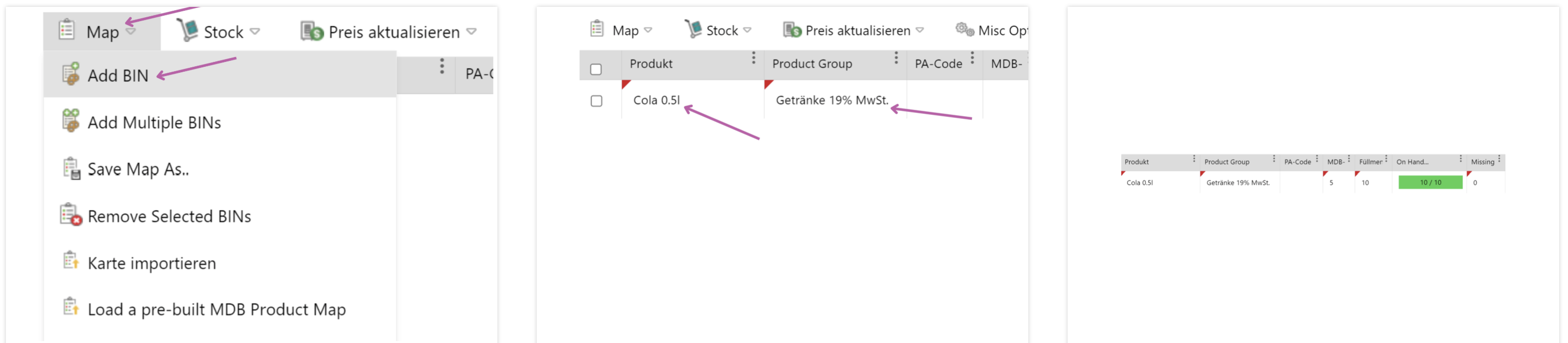
Click on Map → Add BIN.
Assign a product:
Select product group and product
MDB column: enter spiral number
Set fill quantity
Set value for “Missing” to 0 → “On Hand” is updated automatically
Finish with Save information.