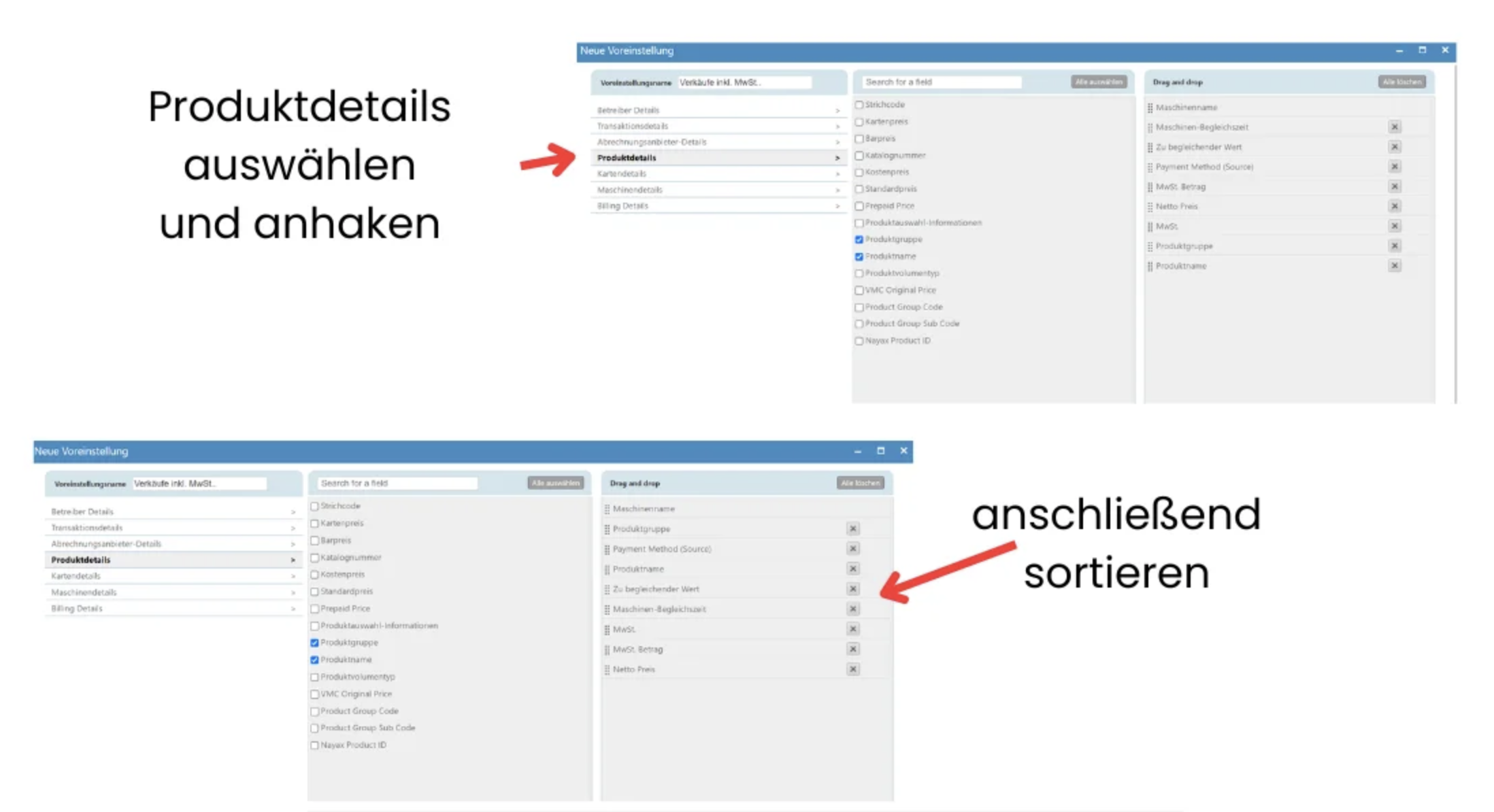
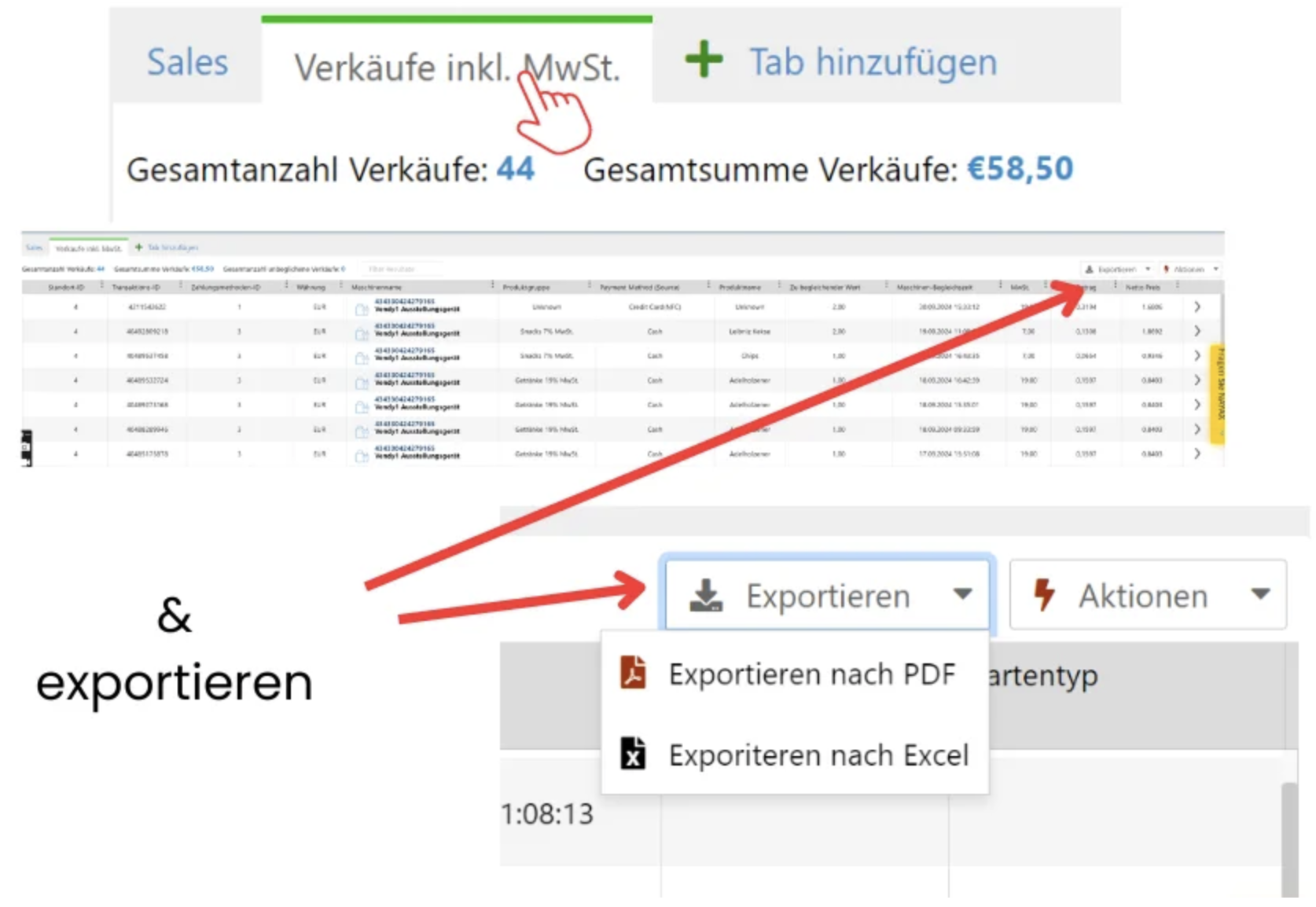
To make sure you can pass on your sales figures correctly to your accounting or tax advisor, Nayax offers two types of exports: the normal export and the dynamic export.
 Important: Depending on your tax advisor, you'll need either the normal or dynamic export. Make sure to clarify this with your tax advisor ahead of time.
You can either read the instructions or watch everything as a video: To the video
 Normal sales export
Log in to the Nayax Portal: https://my.nayax.com/
Make sure your machines are added.
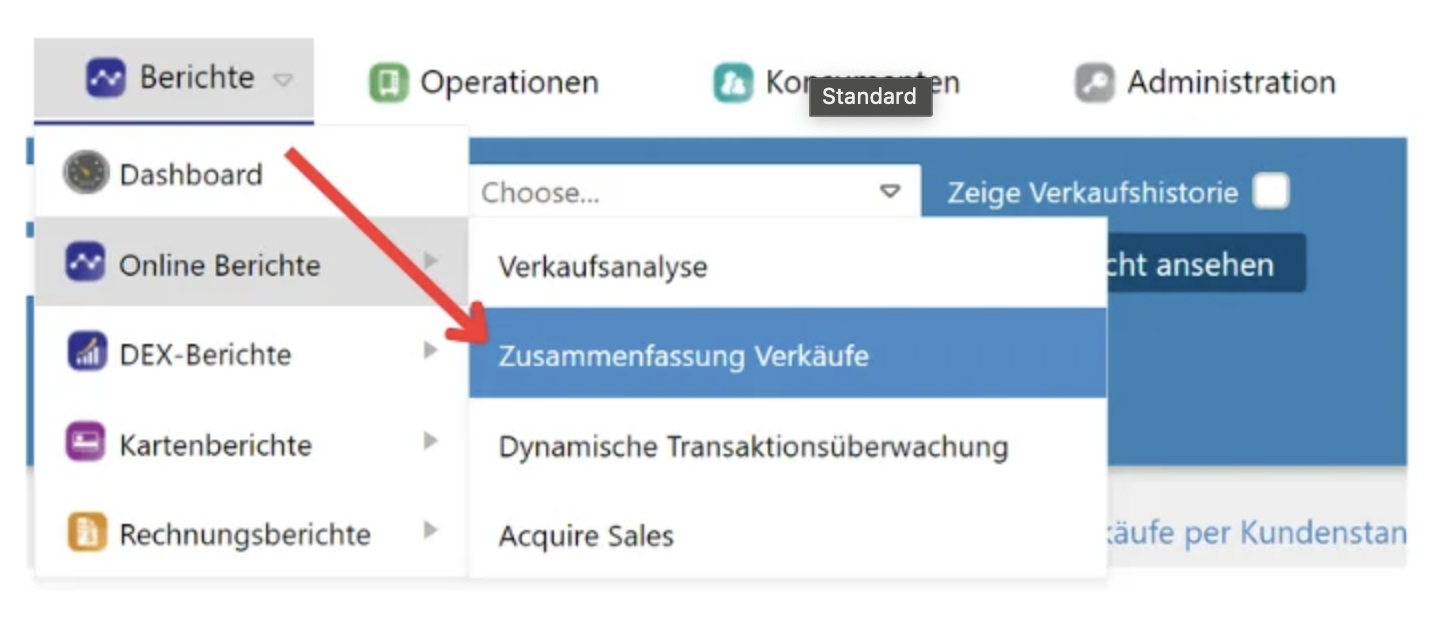
Go to the menu Reports → Online Reports → Sales Summary.
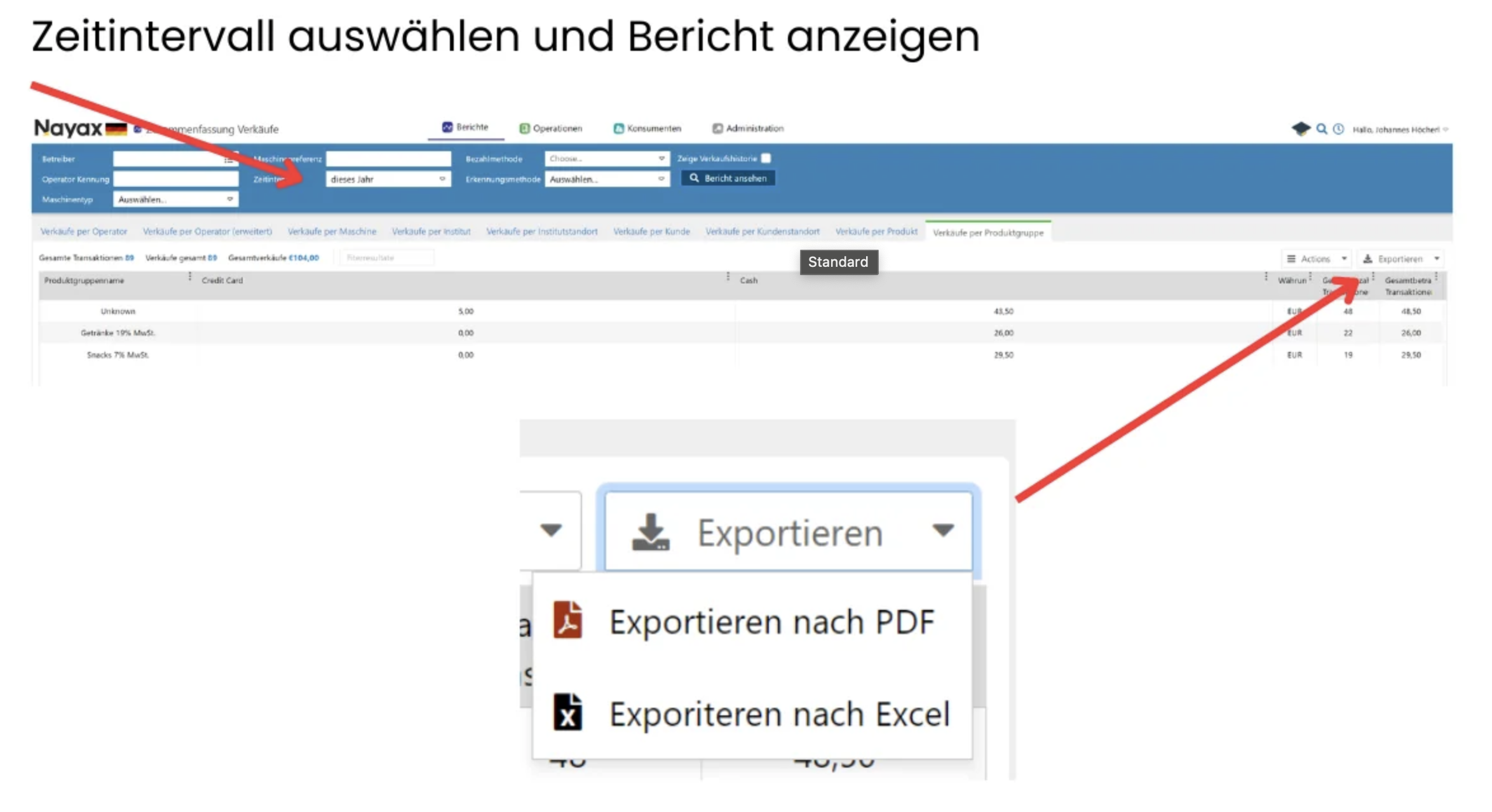
Select the desired time period.
Click on Export → Export PDF (Excel is also optional).
 This export is sufficient for many tax advisors.
 Dynamic Sales Export
The dynamic export gives you more details, for example, individual transactions including cash.
Log in to the Nayax portal.
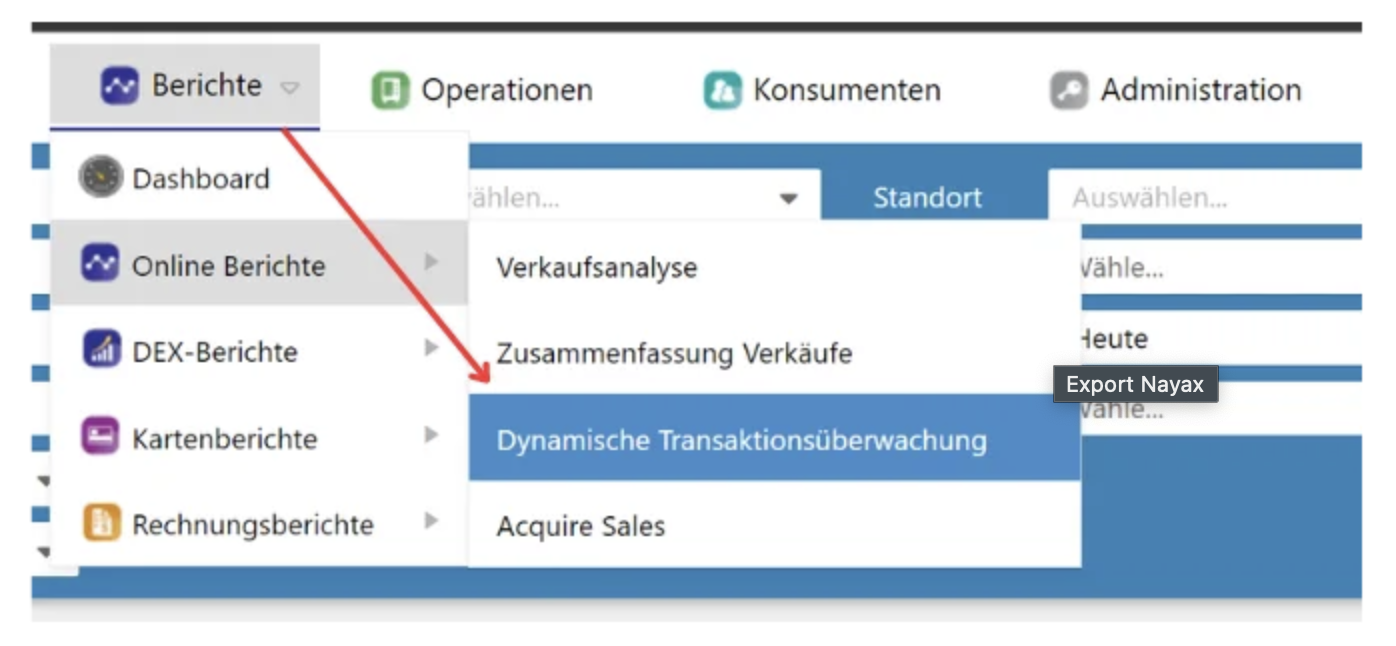
Go to Reports → Online Reports → Dynamic Transaction Monitoring.
Check “With Cash” so cash transactions are also included.
Set the desired time period.
Important: Set the results to 10,000 to make sure the report is complete.
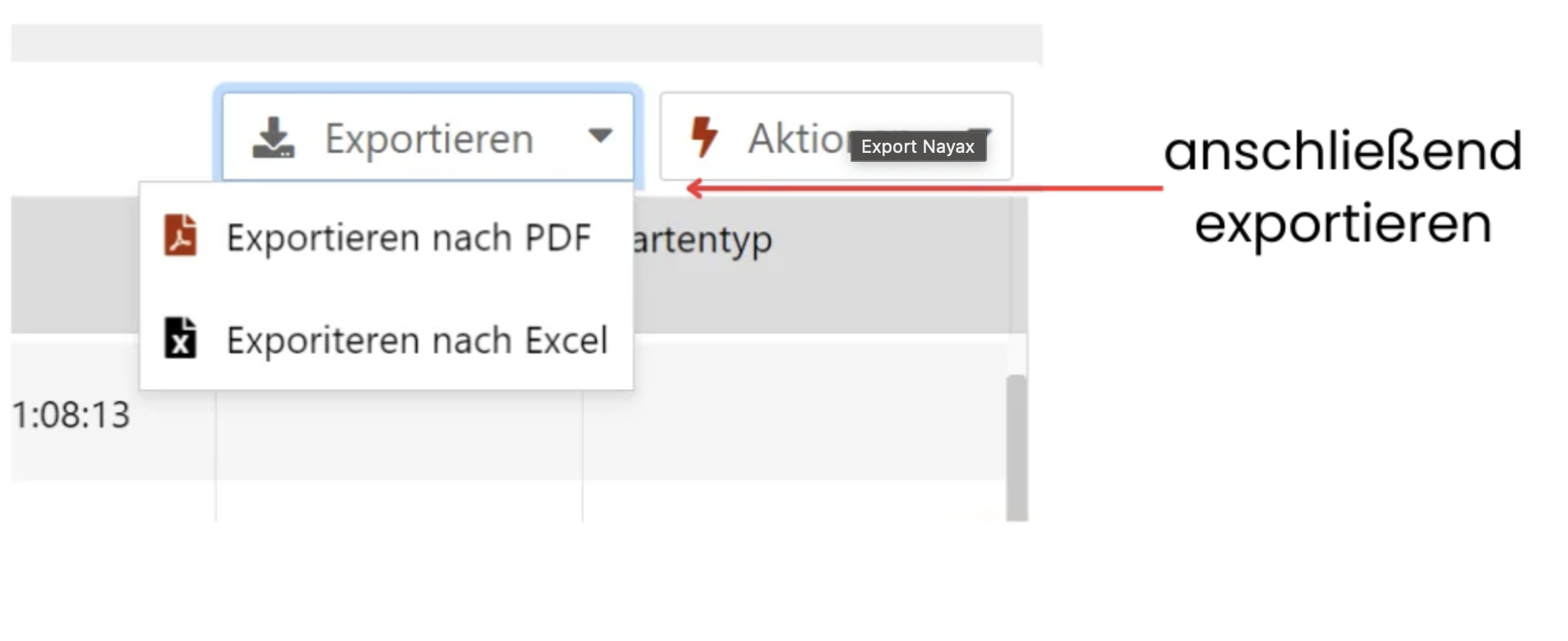
Click Export → Export as PDF (optionally Excel too).
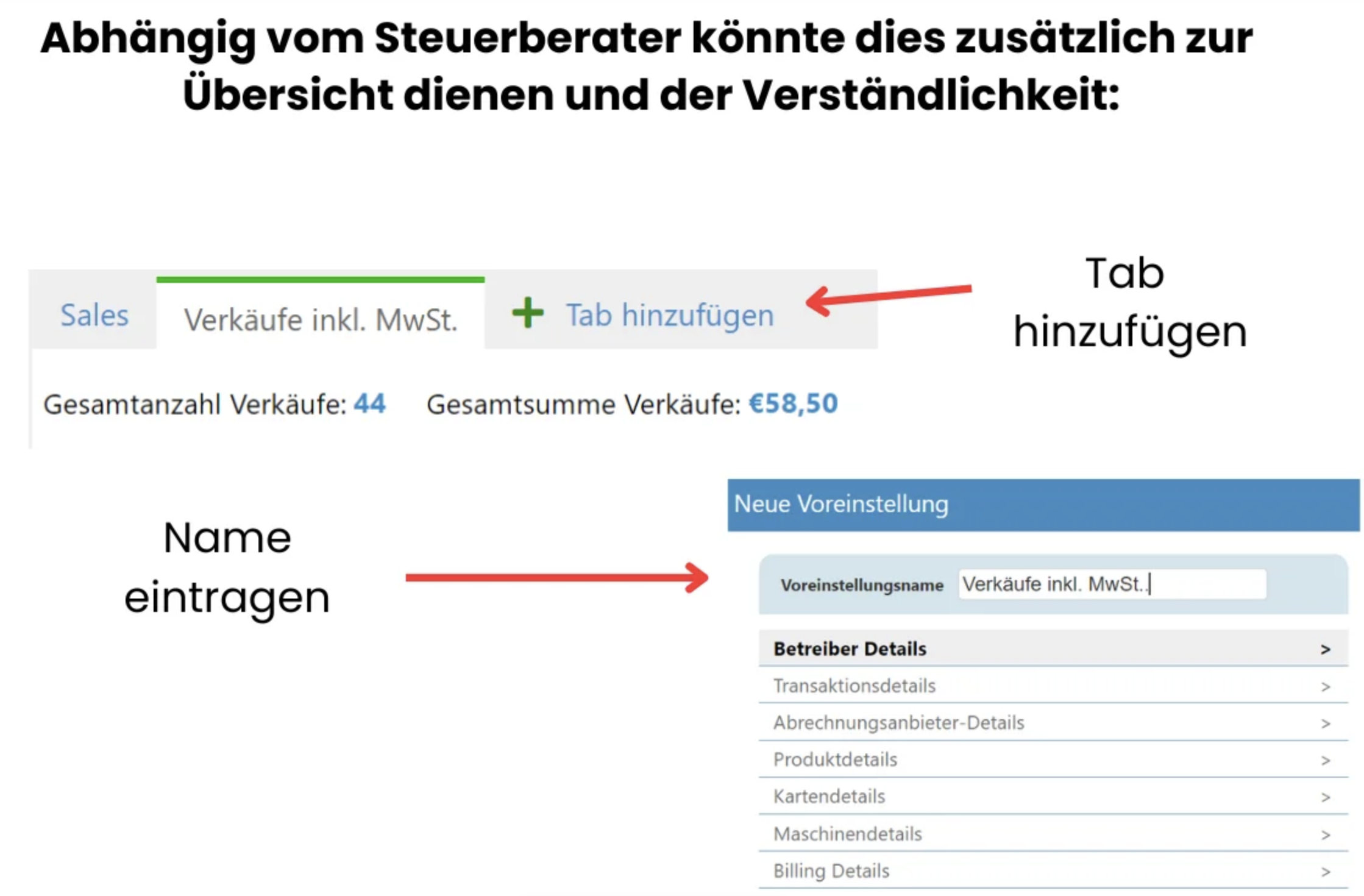
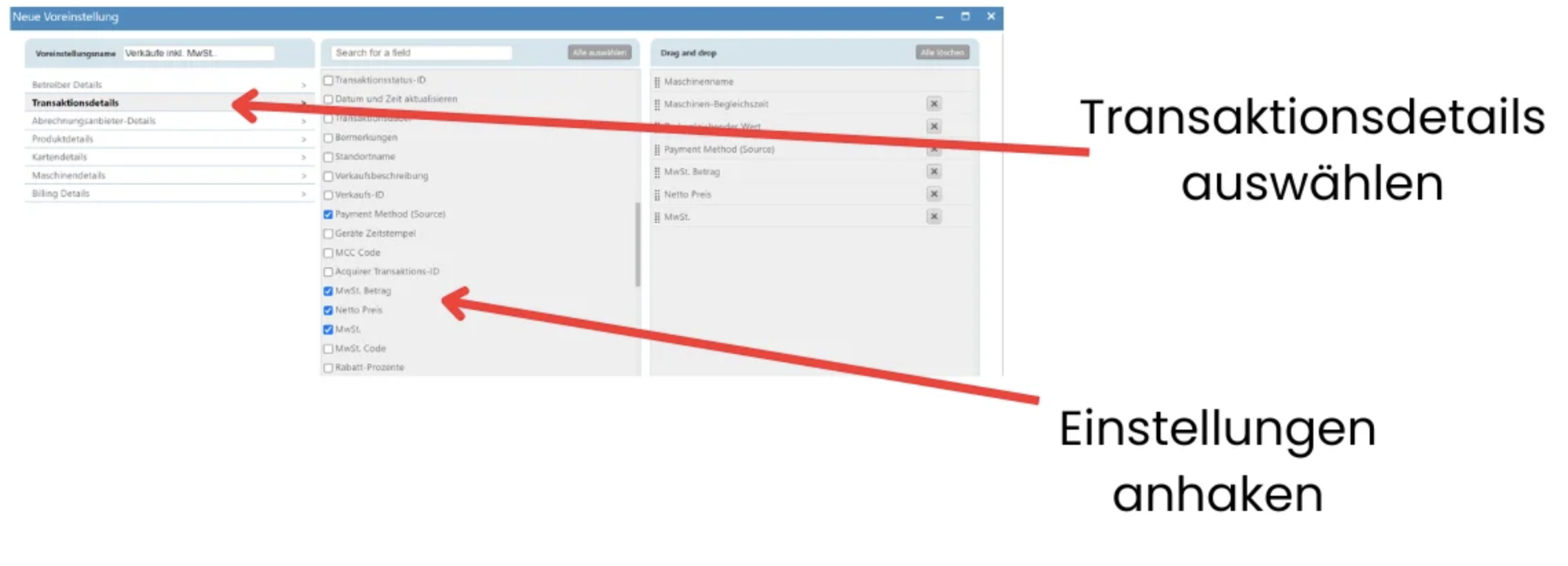
This export is preferred by many accountants because it's more detailed.