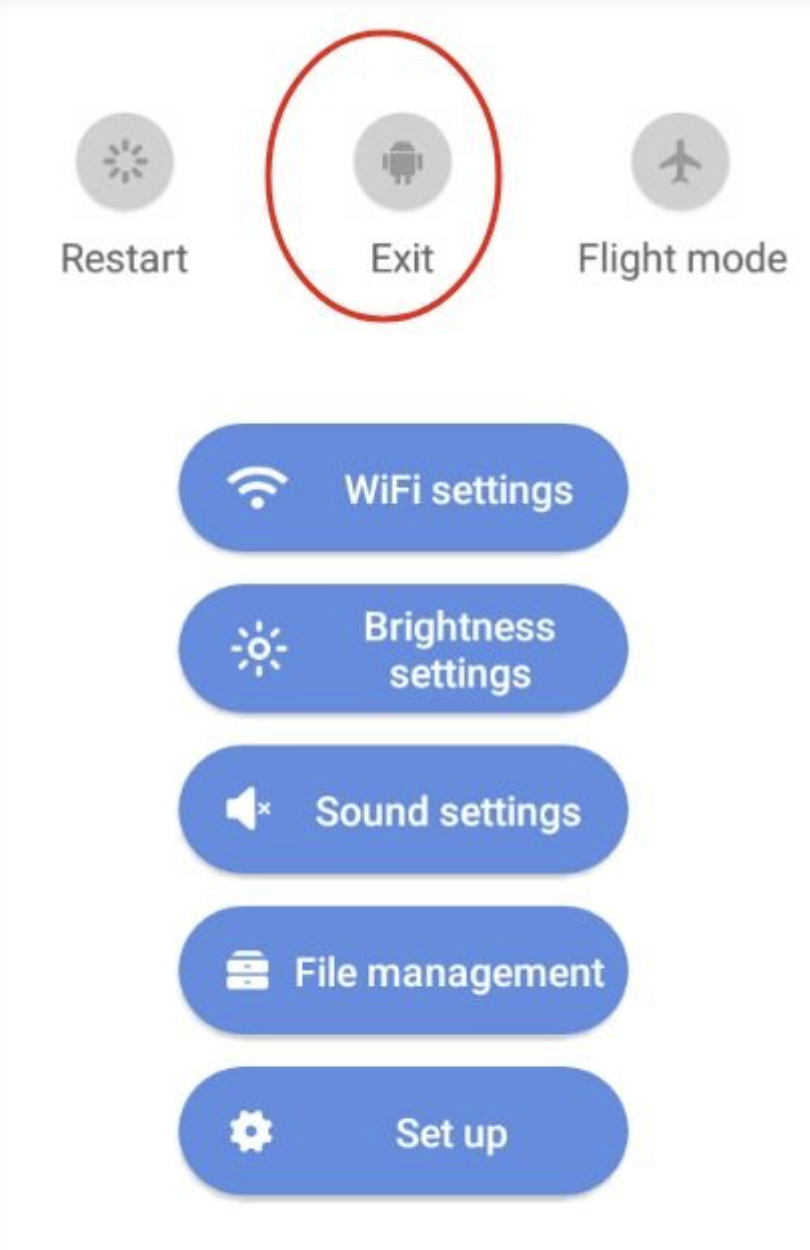
In the main menu, tap Exit (see screenshot 1).
This takes you from the sales interface to the system menu.
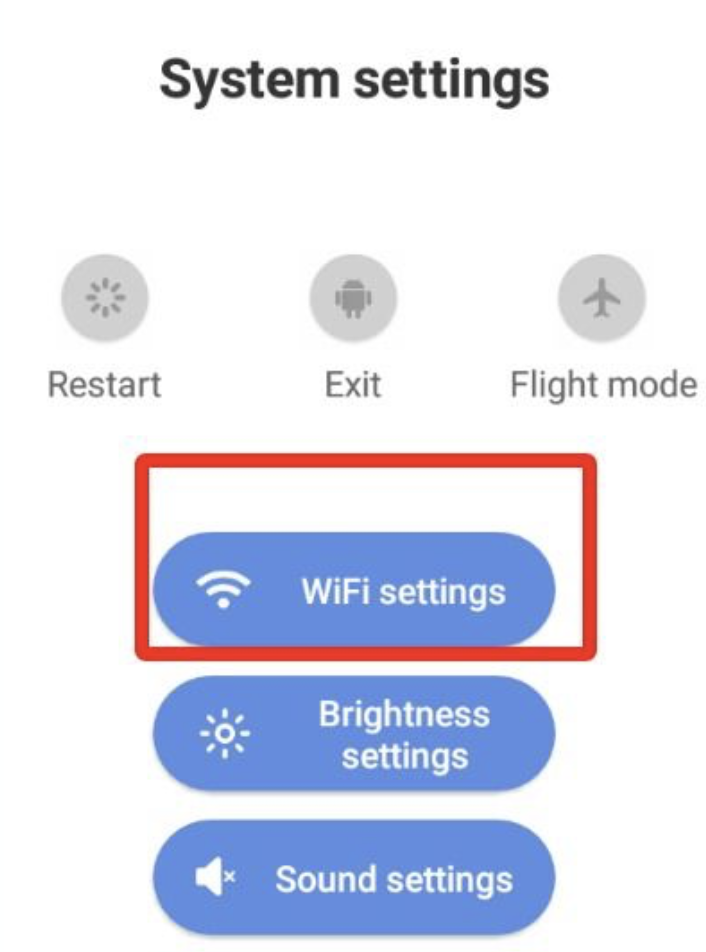
Select WiFi settings (screenshot 3).
Make sure the machine is connected to a stable WiFi. Without internet access, TeamViewer won’t work.
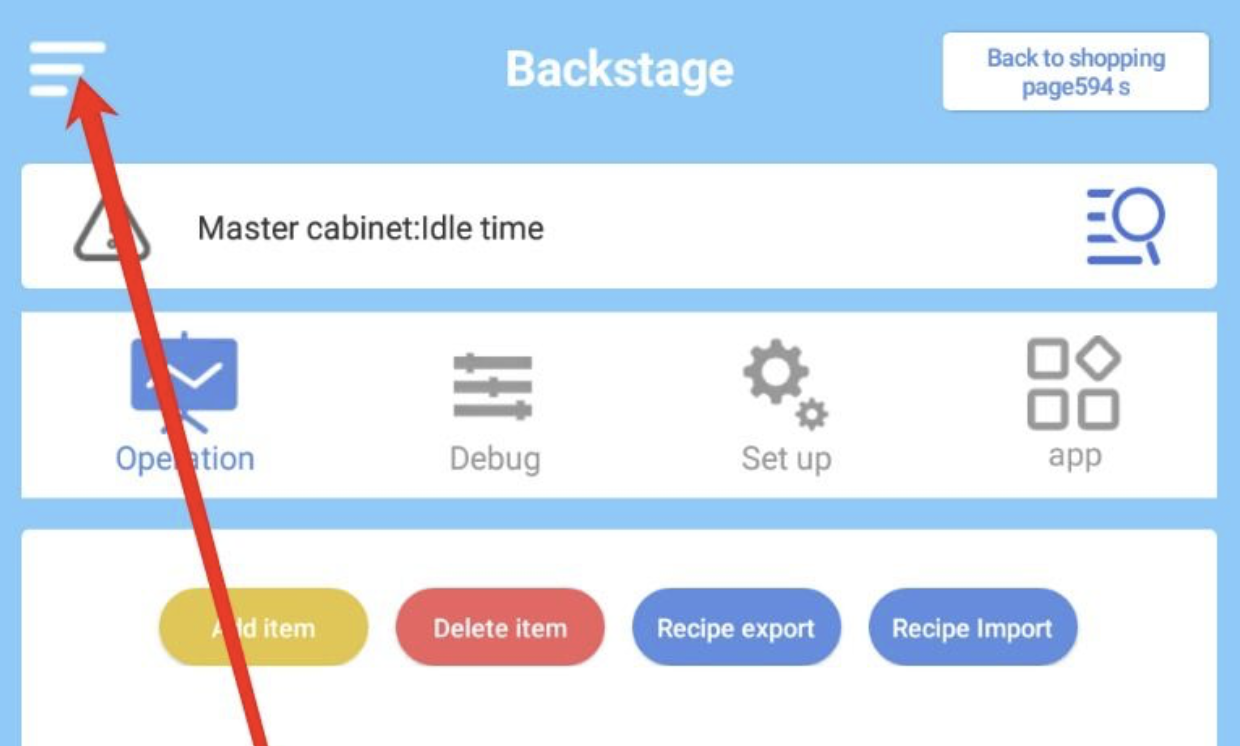
Now go to the Backstage menu (screenshot 4).
Tap the icon in the top left to expand the menu.
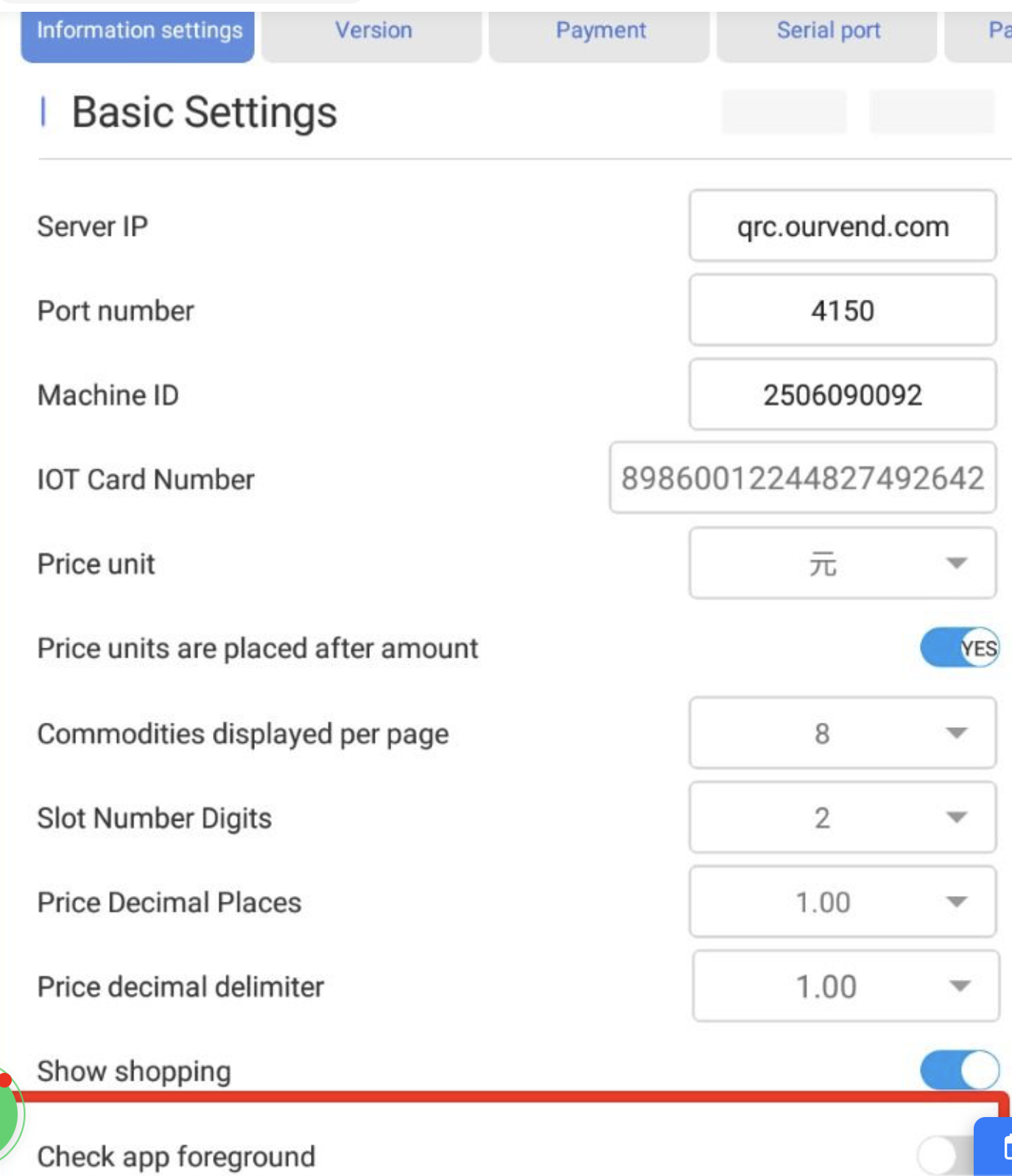
Under Information settings → Basic Settings check if the connection settings (Server IP, Port, Machine ID) are correct.
These settings are required so the machine is recognized properly in the network.
Deactivate “Check app foreground” then Exit.
 Video guide TeamViewer setup on the coffee machine (Vimeo link)
There you’ll find the preinstalled TeamViewer app.
Open the app and write down the ID and password that’s shown on the screen.
Give your support team the displayed TeamViewer access data.
The technician can now connect directly to your coffee machine and do the necessary adjustments or troubleshooting.
 Tip: Make sure the machine stays connected to the Wi-Fi all the time so remote maintenance is always possible.